

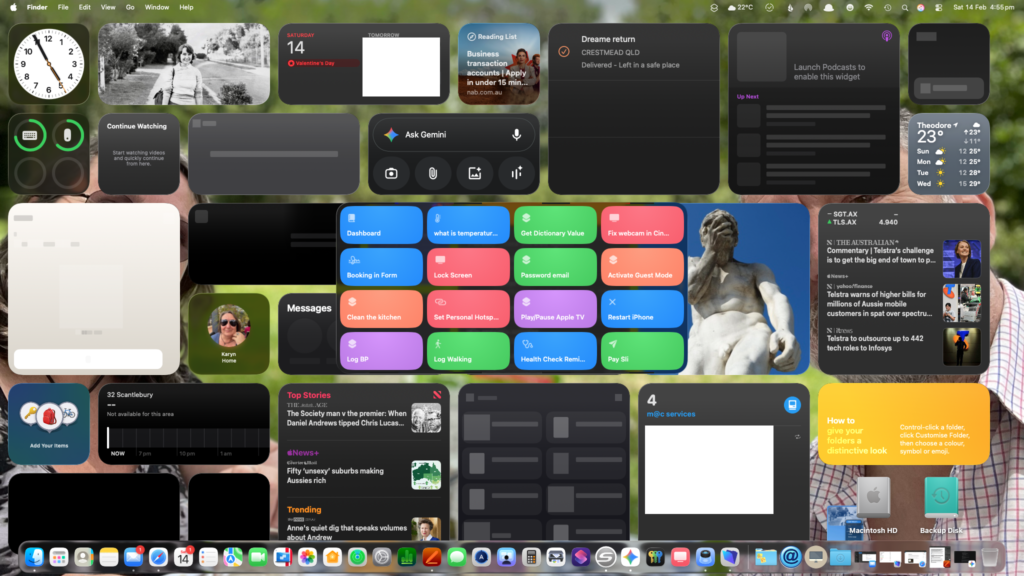
Right, so you’ve just upgraded to macOS 26 and suddenly your screen looks like it’s been vandalised by a toddler with a sticker book. Admittedly not as bad as the above graphic, but still an annoying bunch of about 4 widgets in the top left hand corner. Weather in places you don’t live, stock updates for companies you’ve never heard of, and an inexplicable reminder about Pilates. It’s like your Mac has decided to become your life coach, uninvited.
Now, if you’re anything like me, this is intolerable. I don’t want helpful tiles popping up like mushrooms after rain. I want my screen to look as nature intended: vast, glorious, and empty, with maybe just a picture of Margot Robbie sitting on a horse.
Fortunately, these are easy to remove, so let’s see how to rid yourself of these intrusive little rectangles:
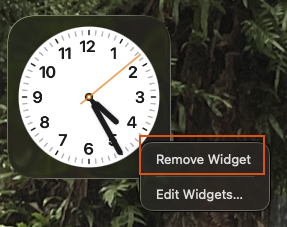
On a Mac, right-click on the widget and choose Remove Widget. Or you can hold down the Control key on the keyboard and just click. On a MacBook, two finger click or use the Control key and click combo.
Apple will tell you these widgets are “glanceable” and “interactive.” But so is a swarm of bees, and you wouldn’t want those in your home either. Now that your screen is clear, you can go back to what a Mac was intended for: writing angry letters to the local council and looking at allhomes.
But what if you actually want these widgets but more customised for you?
Instead of choosing Remove Widget, choose Edit Widgets… instead.
This opens up the Widget control panel and allows you to choose what you’d like.
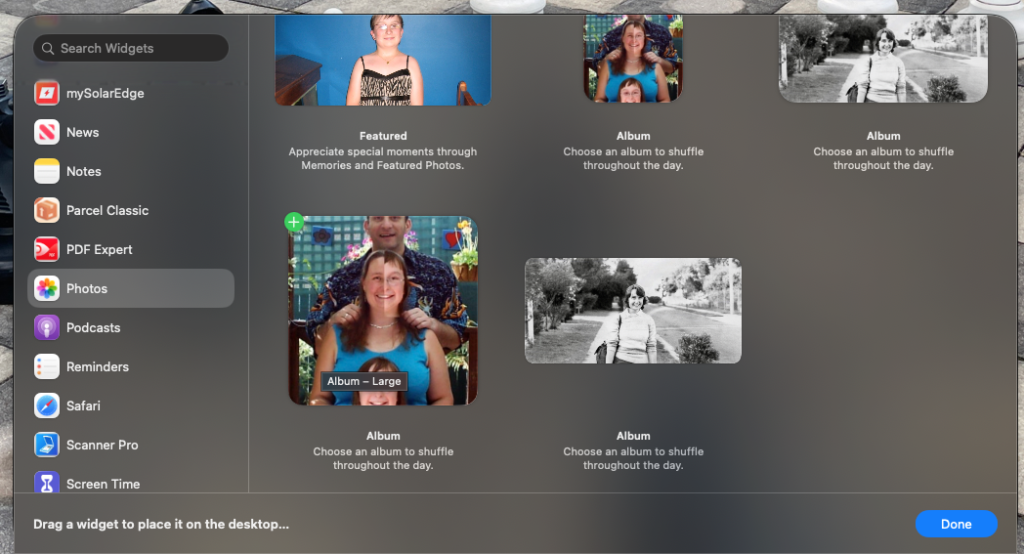
Scrolling through the list on the left you can see all the apps that offer the widget peek-a-boo treatment. Choose the app you fancy and simply click on the widget or the + button, and it will fly onto your desktop. You can drag it around later to get it just where you want it.
A further right-mouse click or Control click, and you can edit widget to further massage the contents. In this case I can choose which Album I want to feature as well as the size of the widget. Other widgets will offer different options.

In the right settings, these little blobs can be helpful…just not when they are randomly chucked on by programmers at Apple.

