

Well, its not quiet limited to the iPhone, but it made for a good title anyway.
Are you are still emailing yourself links, messaging yourself photos, or—heaven forbid—manually re-typing a tracking number from your phone onto your laptop?
You are? Well you are working way harder than you need to and missing out on one of the coolest features Apple never tells anyone about.
I am, of course, talking about Universal Clipboard. And it is already on all your devices.
Universal Clipboard isn’t a special app or a complex file-sharing system and it has been around for a while now. It’s a seamless link – Apple’s own version of Einstein’s Spooky Action – that makes your Mac, iPhone, and iPad act like they share a single brain and like my previous article about 2FA codes auto appearing in Safari, it can make life so much easier.
If you Copy a snippet of text or picture on your iPhone while standing in line for coffee, you can sit down at your Mac ten minutes later, hit Paste, and that exact text or image appears. No wires, no “sending,”. It just works.
To get this running, you don’t need a tech support team. You just need to ensure your Apple ecosystem is actually connected:
One Identity: Both devices must be signed into the same Apple Account.
On your Mac click on the Apple menu and choose System Settings, click on your name at the top and make note of the email address you use to log into your Apple account.
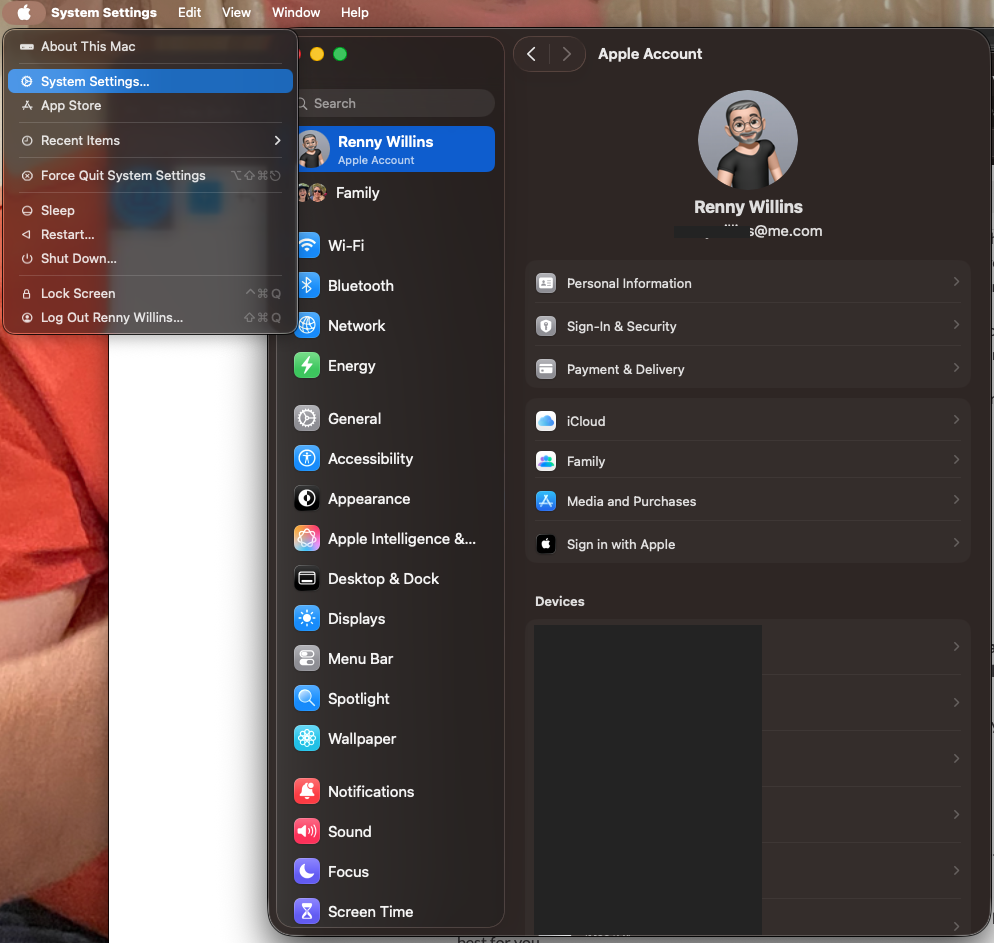
Do the same on your iPhone and or iPad by tapping on Settings then tap on your name at the top of the list.
The Connection: Wi-Fi and Bluetooth must be ON for both devices. They just need to be near each other.
The Secret Toggle (Handoff):
- On iPhone/iPad: Go to Settings > General > AirPlay & Handoff and turn on Handoff.
- On Mac: Go to System Settings > General > AirDrop & Handoff and ensure “Allow Handoff between this Mac and your iCloud devices” is enabled.
There is no “Send to Device” button to hunt for.
The workflow is exactly what you’re already used to:
- Step 1: Highlight text or an image on your first device and select Copy.
- Step 2: Within a few minutes, go to your second device.
- Step 3: Right-click and select Paste (or use Cmd + V).
A tiny progress bar might pop up for a split second saying “Pasting from iPhone…” and then—voilà. Your content has officially teleported.
Once you start using this, the “old way” feels like trying to carry water in your hands. Here a couple of ways it might work best for you…
Find a great quote on your phone? Copy it, and paste it directly into your Word doc on your Mac.
Copy a photo from your Mac’s desktop and paste it directly into an iMessage conversation on your iPhone.
Copy that 6-digit login code from your text messages and paste it straight into your browser on your laptop. (assuming of course you haven’t read my previous articles…cough)
It’s simple, it’s fast, and it finally makes your expensive gadgets feel like they’re actually on the same team.

Recent Comments