

When Microsoft produced their iPhone competitor…no seriously they tried, they often accused the iPhone of just being a “sea of icons”.
Well they were certainly onto something and indeed went on to sell their Metro interfaced phones by the bucket loa…no wait, that’s right…it went bust.
But they did have a point because the iPhone can seem a little overwhelming at times. This is especially true for those that just want something that makes phone calls, and sends text to a very select group of family and friends. The Nokia 2010 good old days.
Fortunately there is something built into the iPhone that can really help and it is called Assistive Access…and for some reason no one ever talks about it.
You see Assistive Accessis a specific, high-contrast mode designed to simplify the iPhone experience. It’s perfect for seniors, people with cognitive disabilities, or anyone who finds the standard iOS interface overwhelming. When the brief seep is finished the phone can look something like this:
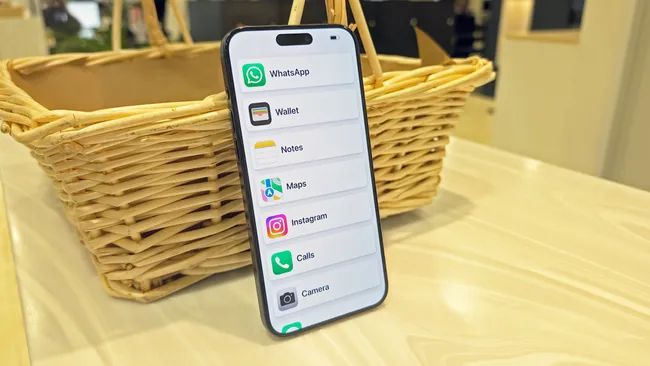
So, in a nutshell what is Assistive Access.
Well, you can think of it as a “simplified skin” for your iPhone. It replaces the standard home screen with large, easy-to-read buttons and narrows the phone down to only the essential apps you choose.
- Big Graphics: Icons and text are significantly larger.
- Focused Features: Apps like Camera or Messages are distilled down to their most basic functions.
- No Distractions: It removes complicated gestures, notification clusters, and the App Store to prevent accidental changes.
Before you start, make sure you have the apps the user will need already installed on the phone.
The phone will already have Messages and Phone and Photos, but maybe they need Facebook or Chrome or some other speciality or favourite app.
Then…
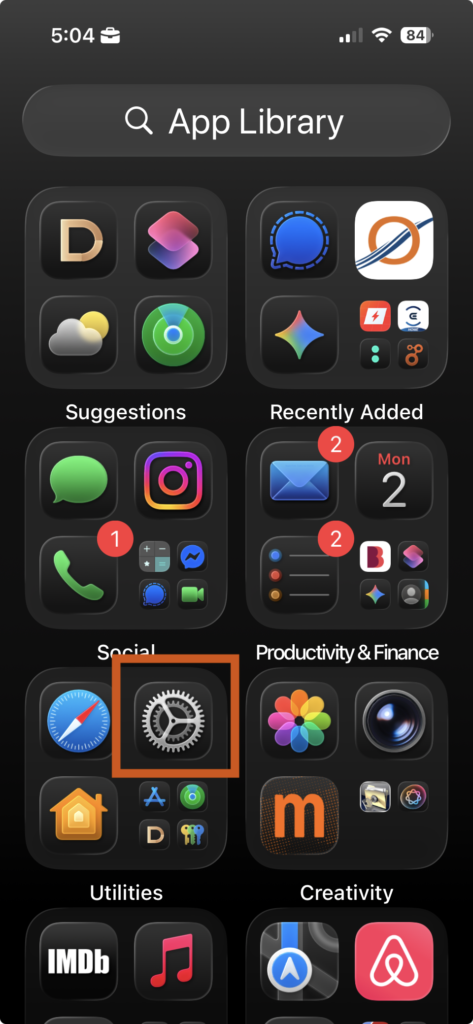
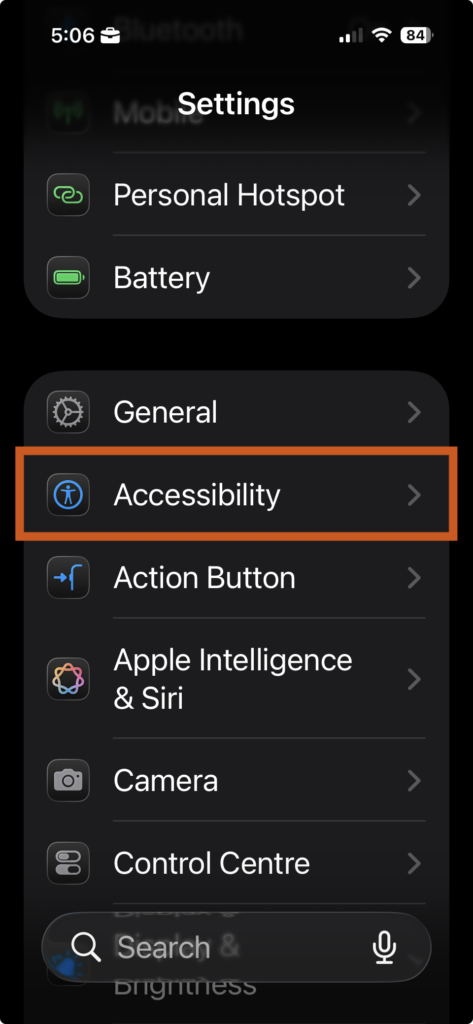
Open Settings > Accessibility.
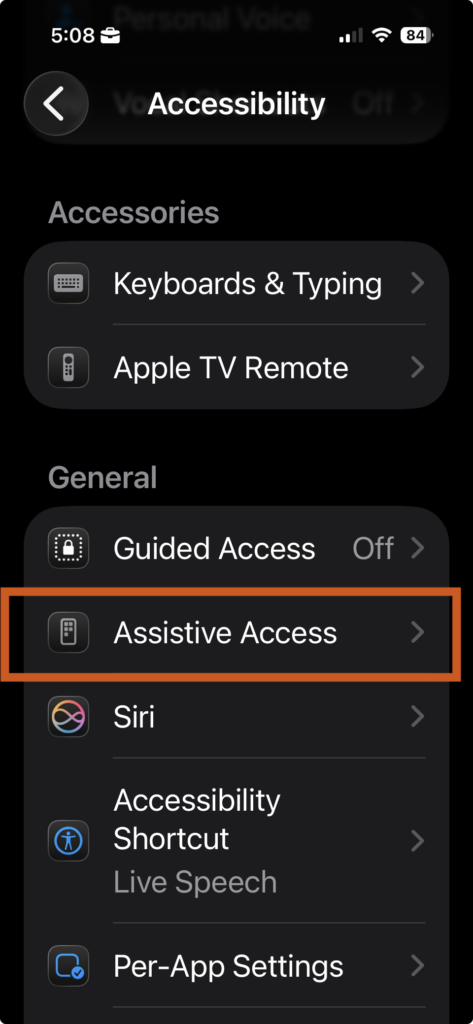
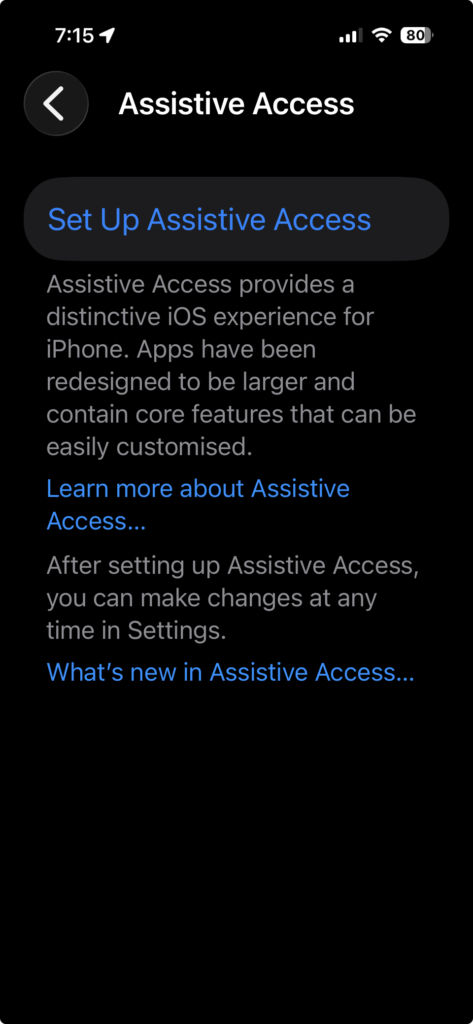
Scroll wwwwwway down to the bottom and tap Assistive Access.
Tap Set Up Assistive Access and hit Continue.
Verify the Apple Account: Ensure it’s signed into the account of the person who will be using the device.
Choose Your Layout:
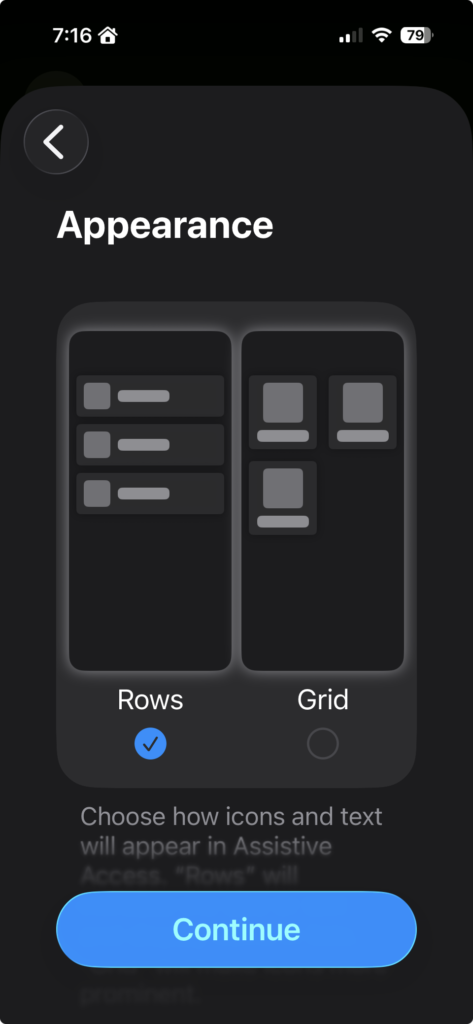
Grid: Best for those who navigate better via large, colourful icons.
Rows: Best for those who prefer reading a list. In this example I chose rows.
Then tap on Continue
Select & customise the Apps by Tapping on the (+) icon next to apps like Calls, Camera, or Messages. Each time you do you’ll need to configure certain apps to act in a specific way. In this example I am tapping next to Calls and choosing to only receive calls from my Contacts but can make calls to anyone.
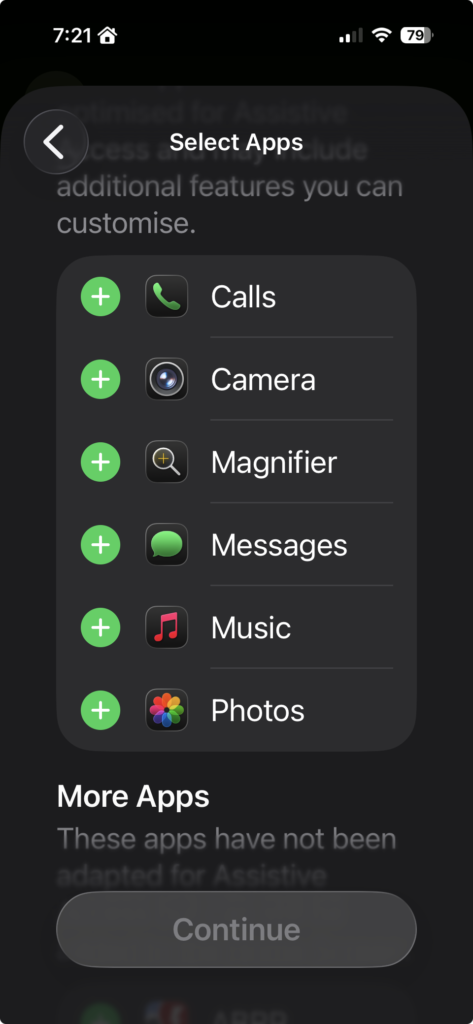
Once each app has been chosen in the way and the features set you’l l be asked a series of choices and reminded that 000 calls can be made triple clicking the side button.
Tap Continue to move through these screens.
Set the Passcode: You will create a specific Assistive Access Passcode. Important: This is different from the regular phone passcode; it is used specifically to enter or exit this mode.
Once set up, you don’t have stay in this mode forever. You can toggle it on or off.
- To Start: Go to Settings > Accessibility > Assistive Access and tap Start Assistive Access.
- To Exit: Triple-click the side button (or Home button) and enter your Assistive Access Passcode. Tap Exit Assistive Access.
While in Assistive Access, the phone behaves differently to stay “simple”:
- No Swipe Gestures: Navigation relies on a giant “Back” button at the bottom of the screen.
- Limited Settings: You can’t change Wi-Fi or Bluetooth settings while in this mode. You must exit to the regular iOS to make system changes.
- Emergency Calls: Even without the passcode, anyone can triple-click the side button and tap Emergency to call local emergency services.
Now please remember…
During setup, Apple will ask if you want to set a Recovery Apple Account. Do not skip this. If you forget the Assistive Access passcode, you can use that recovery account to “break out” of the mode without having to factory reset the entire iPhone.
If you think this will work for you or a loved one but the thought of setting this up is horrifying, drop us a line and we can arrange a call out to set it up for you.

Recent Comments