

*If you’ve updated to Tahoe.
Remember the 80s? Big hair, shoulder pads, and a single, solitary clipboard on the MacPlus.
If you wanted to move three things, you did it three times. Copy. Paste. Copy. Paste. Copy. Paste. It was a digital dark age, a barbaric wasteland of inefficiency and that was the state of things until MacOS26 came along.
But no longer! MacOS Tahoe now comes with multiple clipboards. Oh sure, like most Apple’s new features, this was something that a third party app offered you years ago until Apple saw fit to officially adopt it. And now its all shiny and new…and, like the Passwords app, free.
Since 1984, the humble clipboard was the digital equivalent of a 60 year olds memory allowing only one piece of information to exist at any given time. You copied a paragraph, and poof! The link you copied 30 seconds ago vanished into the ether.
But Tahoe has liberated us from this single-clipboard tyranny. Now, when you copy something, it doesn’t just evaporate like the last location of your car keys. Oh no. It dutifully takes its place in clipboard history where a whole litany… well ten, clipboard items can reside.
So about now, I am sure you are wondering, how do you wield this power in anything like a practical way?
Using Tahoe’s multiple clipboards is so easy, even someone who still uses a dial-up modem could do it (okay, maybe not that easy, but you get the idea).
You start off in the classic way by selecting a line of text, or paragraph, a whole page or a graphic and choose Command and C to copy it to the clipboard.
From here, at least in the past, you would need to then go to the document or email, or whatever, and paste that single item into the document using Command V.
But now after copying the first one, you can select something else and copy that and then select something else and copy that and you can do this ten times in a row if needs be.
By way of example select this word; CAT and press Command and C. Now select this word; DOG and Command C and repeat this process for these words; HOUSE and CAR.
Now, in the past all of your other selections would have been replaced with the last word CAR but now in Tahoe you can have a look at all four items and paste them wherever you want. To do this press the Option and Spacebar or click the Spotlight icon from the menu bar.

Once you see the Spotlight window…

press Command and the number 4 (Command +4) to show the list of clipboard contents
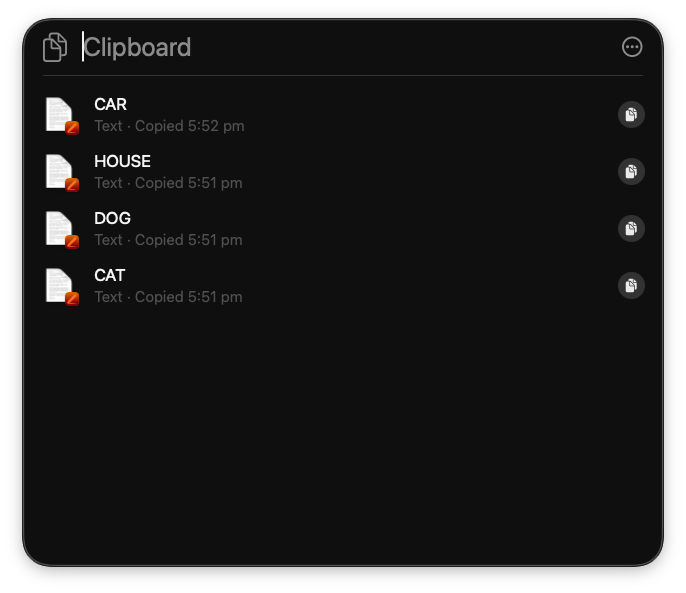
From here you can paste the items to your email, Pages document or whatever in many different ways.
One way would be copy it again, locate the place you want to add it and choose Paste… just like the good old days!
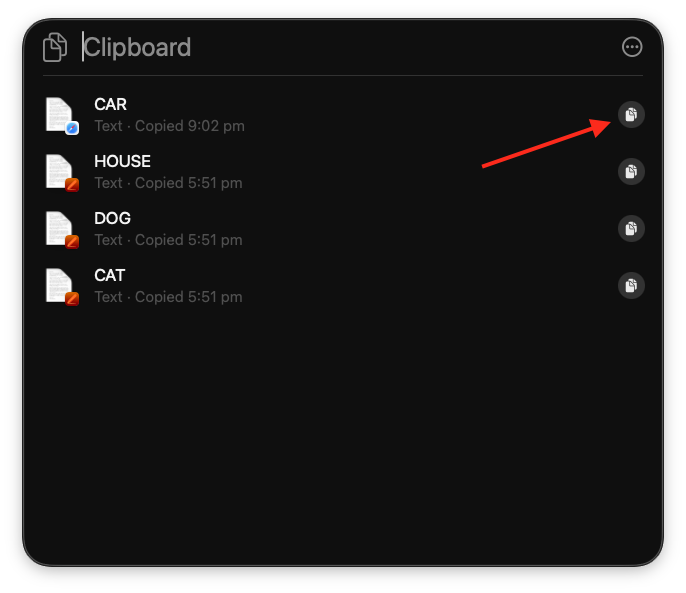
Or you can click and drag in into the place.
Or you can right mouse click on it and paste it into the document you have open.
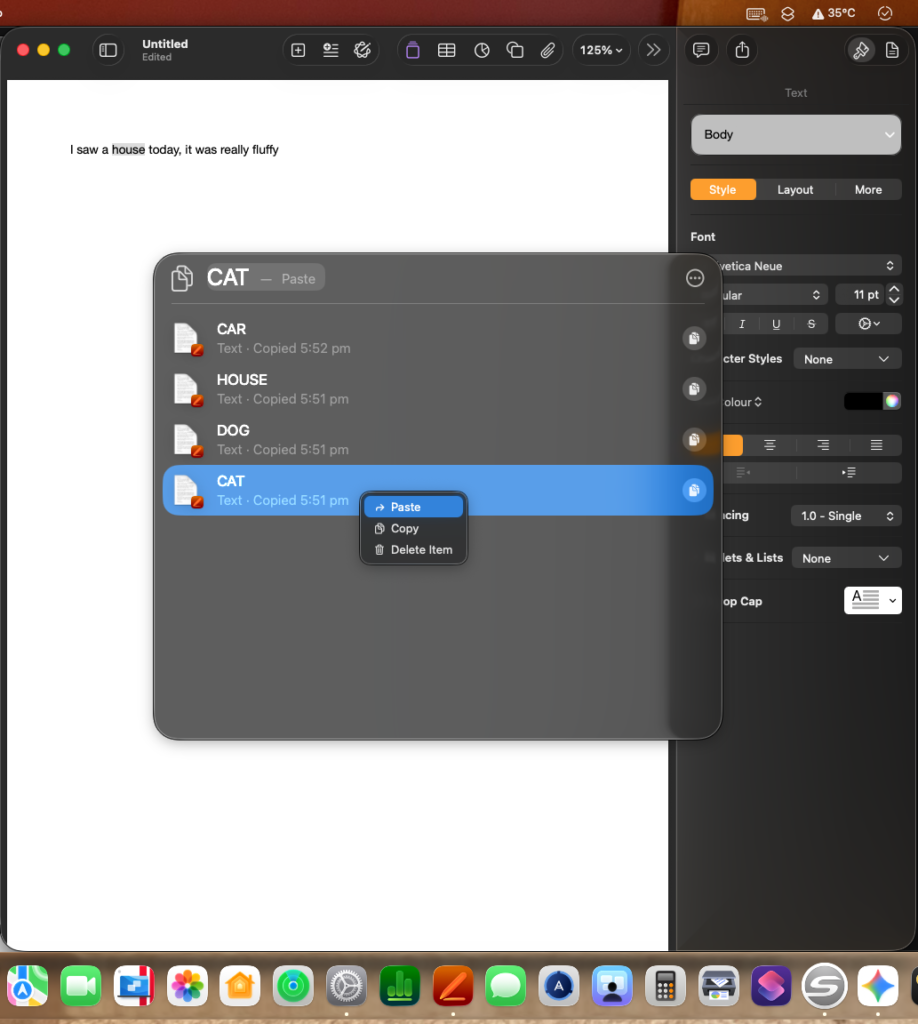
photo
By now you might be wondering, why would I bother?
Well the number one reason, at least for me, would be efficiency. Stop copying the same thing
Then there there is the no more losing your place. How many times have you ever copy something, then realise you needed the previous thing you copied?
So, I say ditch the single-clipboard thing and embrace the power of Tahoe’s multiple clipboards. Your workflow will thank you, and when you copy something and forget to paste it, you’ll be grateful its still around to use.
Somethings to know though. The clipboard only last between 8 hours by default. You can change this in settings to 30 mins or 7 days.
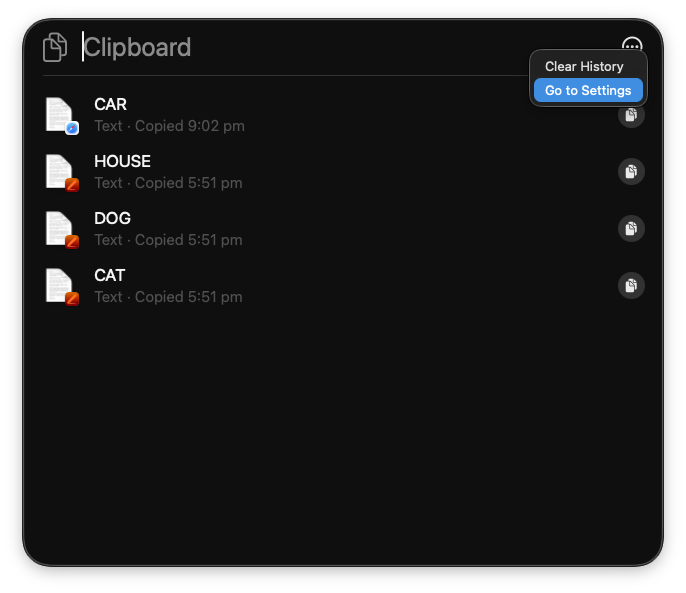
And you can always clear the clipboard immediately after use should you wish.
Please have fun with it.

Recent Comments